Product Updates · July 27, 2026 · 5 min read
Introducing Boss Mode: See How Your Team Is Using Kolo
Boss Mode gives organization owners read-only visibility into how the whole team uses Kolo: spend by model, adoption, skills, pending approvals, and a full audit trail.
By Paul Willmes, COO, Head of Product at Kolo

The question I could not answer
When we started giving everyone at Kolo their own AI employee, a new question showed up that I had no clean way to answer: what is everyone's Kolo actually doing? Work was clearly happening across the team, the AI bill was real, and yet I could not see across all of it. I could ask each person one at a time, but that does not scale, and honestly you should not have to interrupt people to find out how the tools you gave them are working.
Today we are rolling out Boss Mode, and it answers that question for organization owners.
What Boss Mode is
Boss Mode gives an organization owner read-only visibility into how the whole team is using Kolo, in one place, across any time range you choose. The two words that matter most are read-only. Boss Mode never changes anyone's agent, never touches their settings, and never acts on your team's behalf. It is a window onto what is already happening, not a new set of levers.
Right now Boss Mode is available to the Owner role. If you own the organization, you have team-wide visibility; everyone else keeps working exactly as before.
Everything in one view
Open Boss Mode and the top of the page greets you and puts an ask box front and center, ready for a question about your team.
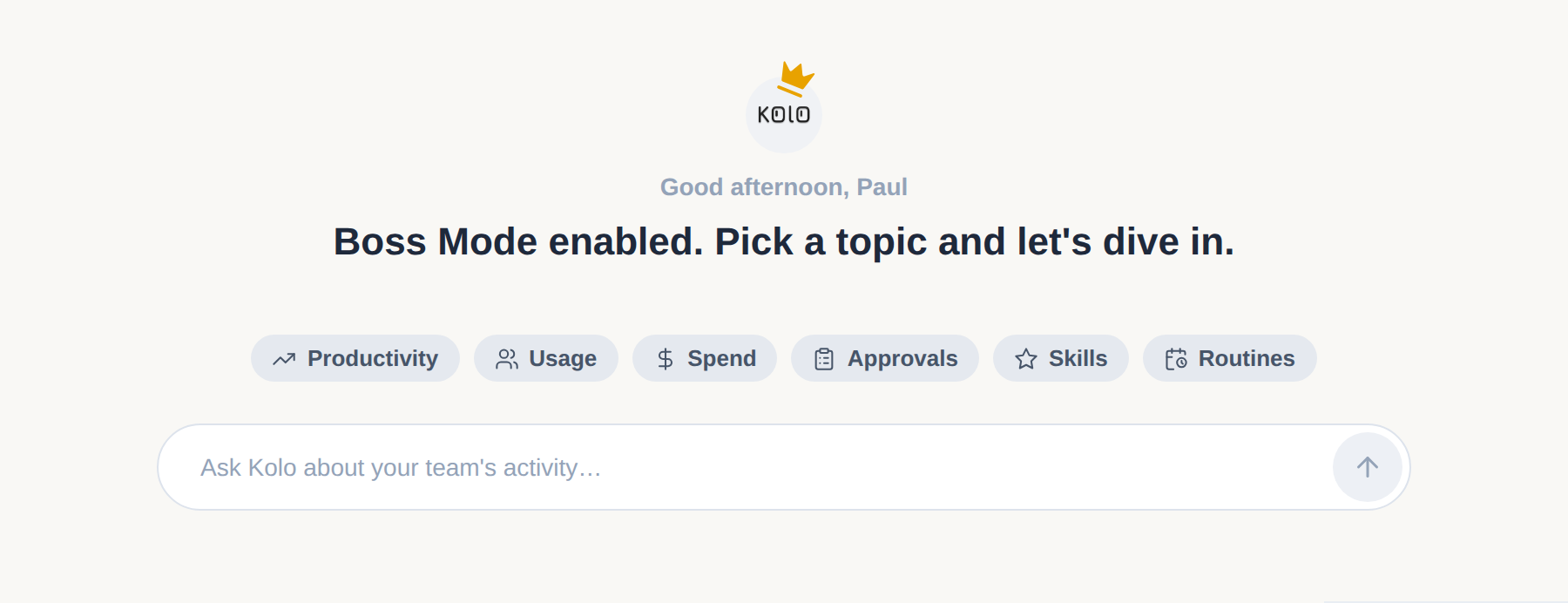
The top of the Boss Mode page.
Below the greeting, a set of tiles answers the three things I ask about most, for whatever time range you pick: total Kolo spend, how many actions are waiting on an approval right now, and how many actions your team has logged in the audit trail. Those numbers reset to the window you select, so "this billing period" and "last week" are each one click away.
Under that sits Team Activity, a row for each person on the team. For every member you can see when they were last active, what they have spent, how many approvals are pending, how many actions they have logged, how many Skills they have installed, and how many routines they have created. In a single glance you can tell who is leaning in, who has not signed in this week, and where both the work and the cost are concentrated.
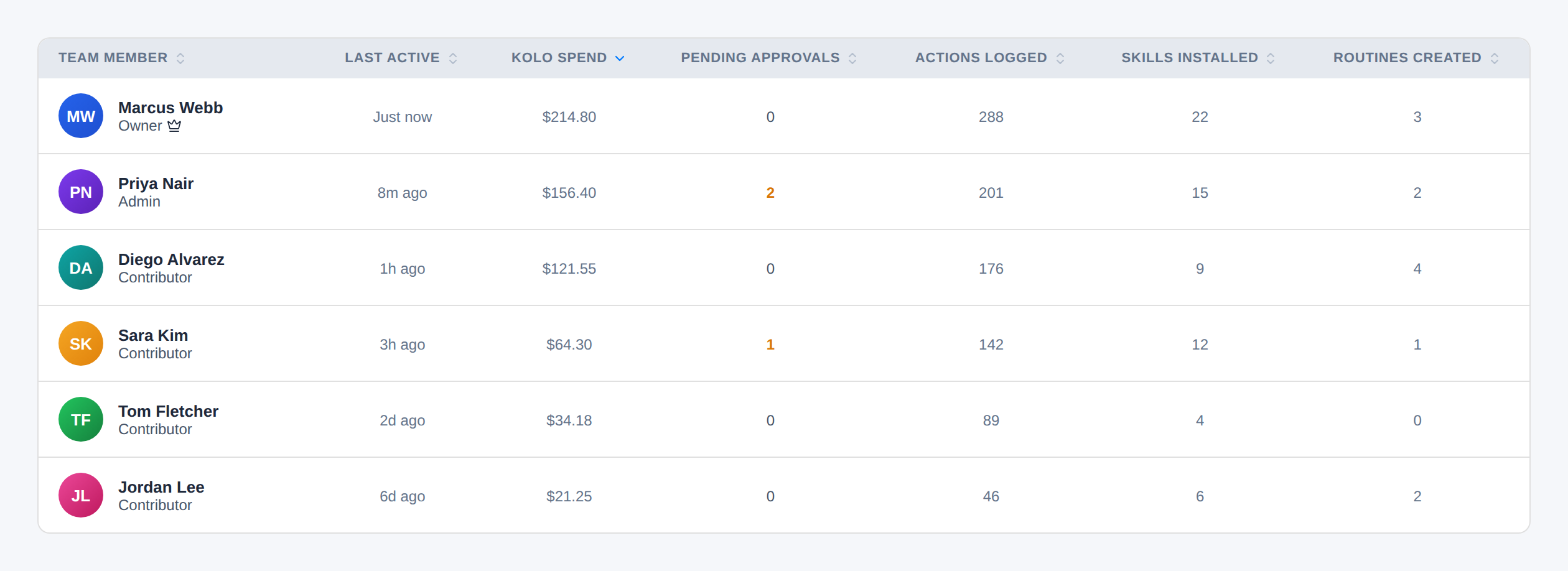
Team Activity gives you one sortable row per person. Sample data shown.
Or just ask your own Kolo
You do not have to live in a dashboard to get an answer. Because Boss Mode is also a capability of your own Kolo, you can simply ask, in plain language. "What did Maria work on this week?" "What is our Opus versus Sonnet spend this month?" "Who on the team has not used their agent?" "What does Tom have connected?" Your Kolo replies from the same underlying records, and it does this without ever prompting or pinging the person you asked about. They are not interrupted and they are not put on the spot.
What you can actually see
Boss Mode reads the records Kolo already keeps and turns them into answers:
- Spend, by member and by model, on the same numbers as your billing page. When the AI bill moves, you can see who and which model moved it.
- Adoption and recency, including who is active and a list of anyone who has gone quiet over a window you choose.
- Skills each person has installed or published. This is where you watch individual know-how turn into shared company assets that stay with the team.
- Connected integrations, shown as status only, so you know what is wired up.
- Scheduled routines running on the team's behalf.
- The agent action audit trail, so you can see what each person's Kolo actually did, not just what was discussed.
- Every pending approval across the team, gathered into one queue.
The spend view breaks every dollar down by model, so it is clear where the AI budget is actually going.
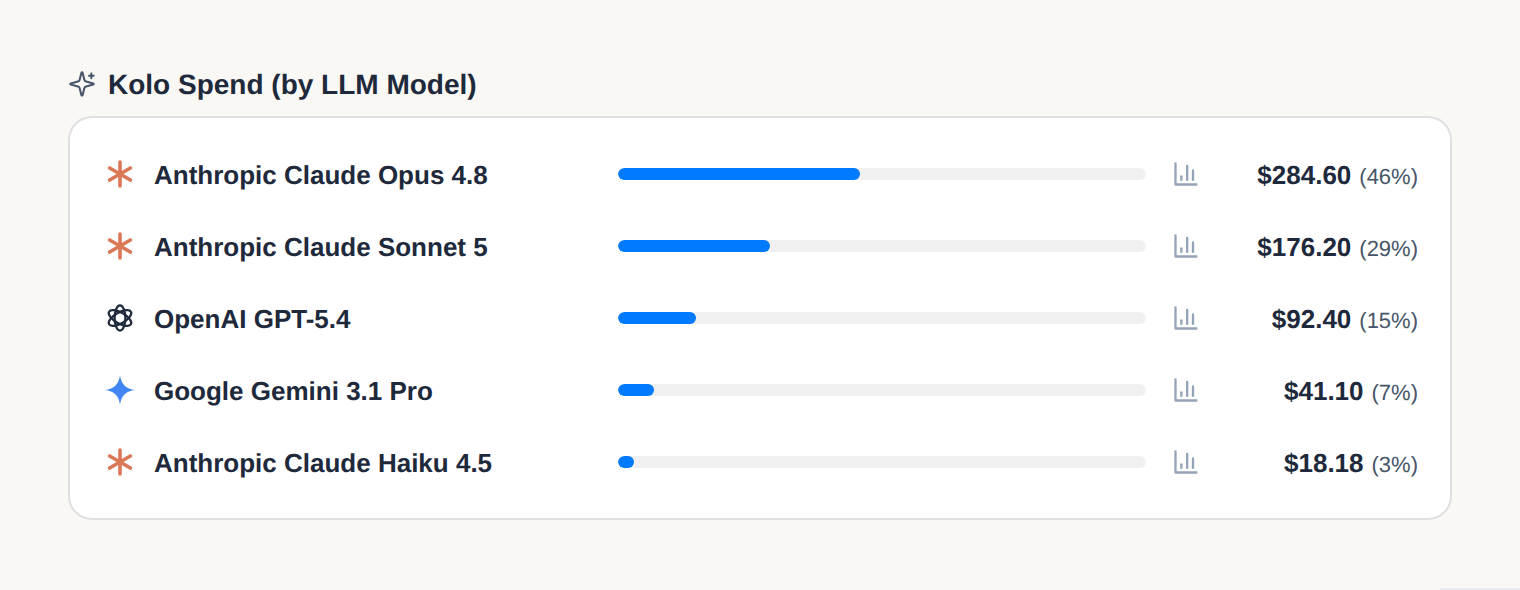
Spend broken out by model, on the same numbers as your billing page. Sample data shown.
And any name opens a full drill-down on that person: their last active time and spend, spend by model, the Skills they have installed, and the routines they have running.
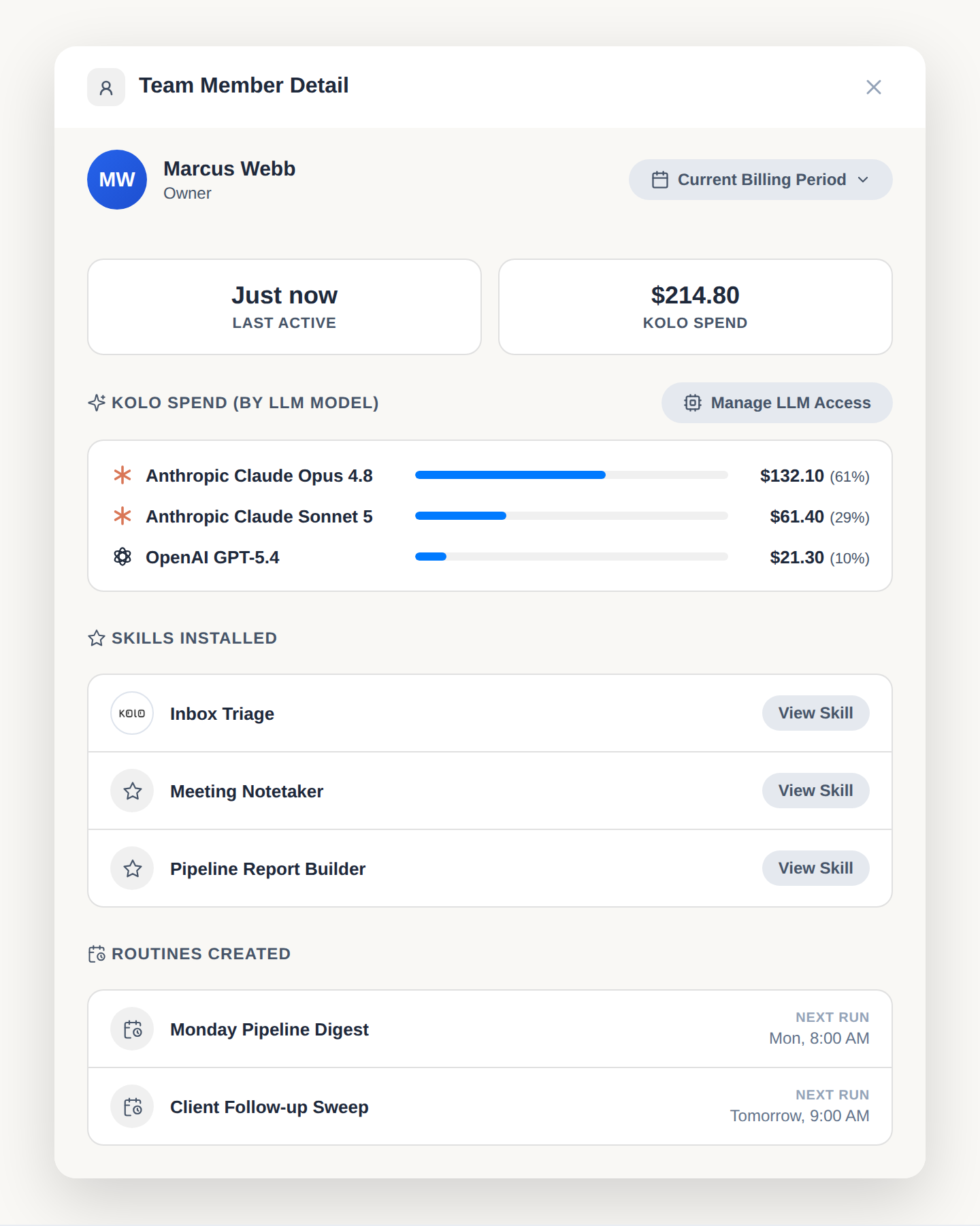
The per-member drill-down, opened from any row. Sample data shown.
Oversight, not surveillance
We thought hard about where to draw the line, because visibility into a team is easy to get wrong.
Boss Mode reads summaries, ledgers, and logs. It never reads through your Team Members' connected apps, so it can tell you that Google Calendar is connected without ever seeing a single event on it. It does not spend their credits to answer your question. And because oversight should run in both directions, every Boss Mode query is itself written to the org audit log: what was asked, about whom, and when. Visibility you can trust has to be visible itself.
On chat history, we moved the line, and we want to be plain about it. When this shipped, Boss Mode did not open Team Members' chats at all. Owners told us the record of what someone actually asked their agent to do was the piece they most needed, so owners can now read a Team Member's chat history too.
What that does and does not include matters. You see the conversation: the messages, the timestamps, and the names of the tools the agent ran. You do not see what those tools returned. Every tool result, and every argument a tool was called with, is redacted on our servers before the transcript is sent anywhere. That is not squeamishness. An agent that reads a config file puts the contents of that config file into its own transcript, so serving raw transcripts would hand an owner their Team Member's passwords and API keys along with the conversation. Redacting the payloads is what makes the rest safe to show.
Every transcript an owner opens is audited under its own entry, separate from ordinary file reads, so "who read whose conversations" is a question the log can answer directly.
Why we built it
Giving each person their own Kolo is the whole point, and it is powerful. But as the owner, you also need to see the whole. Boss Mode is that view: the spend, the adoption, the decisions waiting on you, and the record of what got done, without turning into a monitoring tool and without slowing anyone down.
If you are running a team on Kolo, Boss Mode is live now. Book a Demo.
Frequently asked questions
Who can use Boss Mode?
Boss Mode is currently available to the Owner role in an organization. It gives owners team-wide, read-only visibility into how everyone is using Kolo.
Can Boss Mode read my team's chats?
It can read what was said, and not what the agent's tools returned. An owner can open a Team Member's chat history, which shows the messages, when they were sent, and which tools ran by name. Everything a tool returned is redacted before it leaves our servers, because agent tool output routinely contains that member's own credentials. Boss Mode still never reads through a member's connected apps, so no inboxes, calendars, or documents. And every transcript an owner opens is written to the org audit log as its own entry.
Does a Team Member get interrupted when I ask about their work?
No. Boss Mode answers from Kolo's own records without prompting or notifying the Team Member's agent, so no one is put on the spot. And every Boss Mode query is itself recorded in the org audit log.
Are the spend numbers the same as my bill?
Yes. Boss Mode spend figures are on the same reconciled basis as your Plan and Billing page, and you can break them down by member and by model.