Product Updates · November 5, 2026 · 4 min read
Let your Kolo use your keys and logins, safely
Your Kolo can now use your API keys and sign in to sites it has no built-in connection for. You enter each secret on a private card, never in the chat, and an admin allows each app.
By Paul Willmes, COO, Head of Product at Kolo
The one request we kept hearing
One question comes up in almost every conversation with a new customer: can Kolo work with the tools we already use? Most of the time the answer is easy, because Kolo connects to more than 150 apps. But every so often the tool is something niche, something internal, a service with a private API or a site that Kolo has no built-in connection for, and the honest answer used to be "not yet."
Today that changes. Your Kolo can now use your own API keys and sign in to websites for you, including apps it has no connector for, and your keys and passwords never appear in a chat.
You hand Kolo a key on a private card
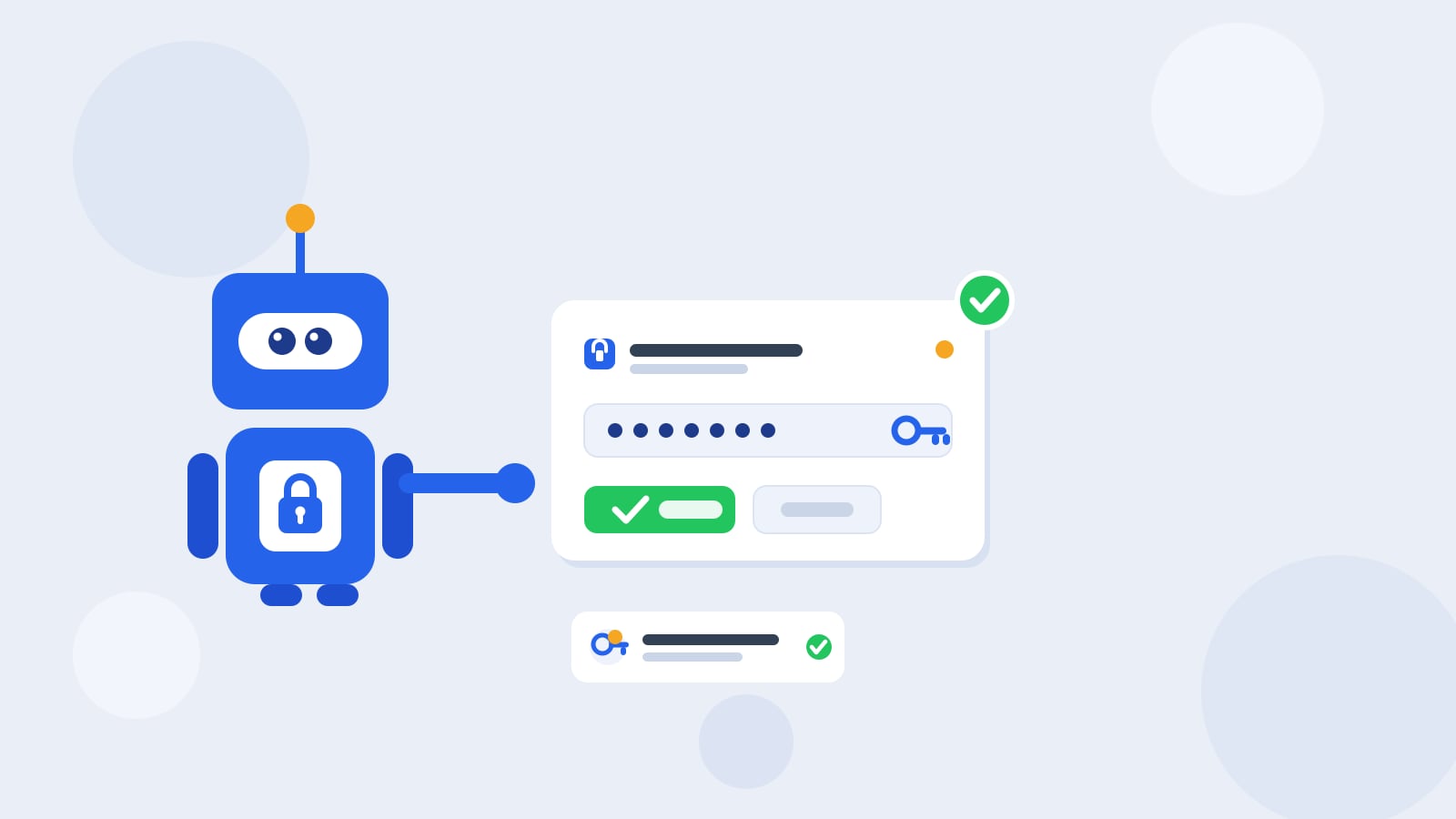
When your Kolo needs access to one of these apps, it does not ask for the key out in the open. It shows a private, masked card right in the conversation, titled with the app it needs ("Kolo is asking for your Acme key"), and you type the key, or a website login, into that card. The value goes straight into secure storage. It never lands in the chat transcript, a log line, or the Audit Trail.
Each saved key or login belongs to one person. No one else in your workspace can see it or use it, and it is never shown again, not even to you. You can open a saved key to see what it is made of, but the secret values stay hidden. Everything you have given Kolo this way lives under "Other apps" in settings, grouped as "Your keys," where each website login shows up as its own row.
Your secrets stay out of the chat
The whole point is that Kolo can use a secret without surfacing it. For an API key, the card tells you plainly: Kolo will use this without ever reading it. The key is added to each request on Kolo's servers, scoped to that app's own site, so the value does not pass back through the conversation. Everything is stored encrypted, and decrypted only on Kolo's servers at the moment a request needs it.
For a website login, Kolo's own browser types the password into the sign-in page for you, so you are not pasting it into a chat and not driving the browser by hand. Kolo is careful to tell you the shape of this one. The browser fills the password without showing it to the model, but a program the agent runs on its own computer could still read a login at the moment Kolo signs in, so the setting tells you to save logins only for sites your team is comfortable with Kolo using this way. We would rather you know exactly how it works than imply a guarantee we cannot keep.
There is one more guardrail worth knowing. If one of your stored secrets ever shows up where it should not, in a reply Kolo is about to send you, or in a request it routes through Kolo's own servers, Kolo stops and tells you rather than letting it through.
You decide which apps are allowed
Letting an agent hold keys is the kind of power that needs a clear owner, so a new app has to be allowed once by an admin. The first time a Team Member wants Kolo to hold a credential for a new app, that request goes to an admin to allow, rated high risk like any consequential action. (An admin who adds the first key themselves allows it in the same step.) After that, Team Members can add their own key for that app without asking again.
If you ever want to pull the plug, "Stop allowing" removes every saved key your workspace holds for that app and closes any pending requests, and allowing it again later restores nothing. Website logins add two more controls. Admins can turn on "Ask every time," so every sign-in with a saved login needs a person's approval. And whenever Kolo cannot confirm that you started a request yourself, say another Team Member's message in a shared chat set it off, it asks before it uses your login. If your admin turns it on, Kolo can even enter the six-digit authenticator code after it signs in, so two-factor does not stop the work.
Why we built it this way
As of November 2026, the usual way to connect an AI tool to an app it does not natively support is not pretty. You either paste an API key or a password into the chat, where the model reading your message can read the secret too, or you take over the browser and sign in by hand every single time. Neither is something I would want my own team doing with a real password.
We wanted the opposite: Kolo does the work, and your keys and passwords stay out of the conversation. This sits on top of the trust posture Kolo already runs on, risk-tiered approvals that pause the consequential actions for a person, an exportable Audit Trail of what Kolo actually did, roles that decide who approves what, and per-person ownership of every key. It also means Kolo's 150+ integrations are no longer the hard edge of what it can reach. If your team lives in a tool nobody else has heard of, Kolo can now meet you there.
Try it with one app
If there is a tool your team keeps wishing Kolo could touch, this is the week to try it. Ask your Kolo to work with that app, hand it a key or a login on the card when it asks, and have your admin allow it once. To see this and the rest of Kolo working for your team, Book a Demo.
Frequently asked questions
Does Kolo ever put my key or password in the chat?
No. You enter every secret on a private, masked card, and the value never appears in the chat transcript, a log, or the Audit Trail. For an API key, Kolo adds it to requests on its own servers; for a website login, Kolo's browser types it into the sign-in page.
Can other Team Members use a key I saved?
No. Each saved key or login belongs to one person. No one else in your workspace can see it or use it, and it is never shown again, not even to you.
Who decides which apps Kolo can hold credentials for?
An admin. The first time a Team Member wants Kolo to hold a key for a new app, an admin allows it once, rated high risk. Admins can also require approval before each website sign-in, and turn on stored two-factor codes per app.
What if I want Kolo to stop using an app's keys?
Use Stop allowing for that app. It removes every key your workspace holds for it and closes any pending requests, and allowing it again later restores nothing, so everyone would enter their key again.